Add proximity voice chat with Easy Proximity Voice Chat
After this guide, players hear each other by distance, the mouth of the player who talks moves, and a microphone shows above their name. A dead player is muted until a revive bay brings them back.
The guide uses Easy Proximity Voice Chat (EPVC) 1.2, a separate plugin on Fab. MPFriendslopV2 does not include it, but it already has the hooks that EPVC needs: Set Mouth Openness on BP_FaceComponent and Set Speaking on BP_NameplateComponent.
Before you start
- EPVC 1.2 for Unreal Engine 5.8, installed from Fab with Install to Engine.
- A microphone.
- MPFriendslopV2 open in Unreal Engine 5.8.
Turn the plugin on
- Open Edit, then Plugins.
- Type
Easy Proximity Voice Chatin the search box. - Tick the box on its line.

- Close the editor. Do not open it again yet.
Turn on voice capture
Unreal does not record the microphone until a setting allows it.
- Open
Config/DefaultEngine.iniin a text editor. -
Add these two lines at the end of the file:
[Voice] bEnabled=true -
Save the file, then open MPFriendslopV2 again.
Unreal reads this setting only when the editor starts.
Create the voice settings
EPVC reads its settings from one Data Asset. The Data Asset points to a Sound Attenuation, which decides how far a voice carries.
- In
Content/MPFriendslop/Audios/Attenuation/, right click, then Audio, then Sound Attenuation. Name itATT_Voice. - Open
ATT_Voice. SetInner Radiusto300andFalloff Distanceto2000. - In
Content/MPFriendslop/Blueprints/DataAssets/, create a folder namedVoice. - In that folder, right click, then Miscellaneous, then Data Asset.
- Pick
ProximityVoiceConfig. Name itDA_Voice. - Open
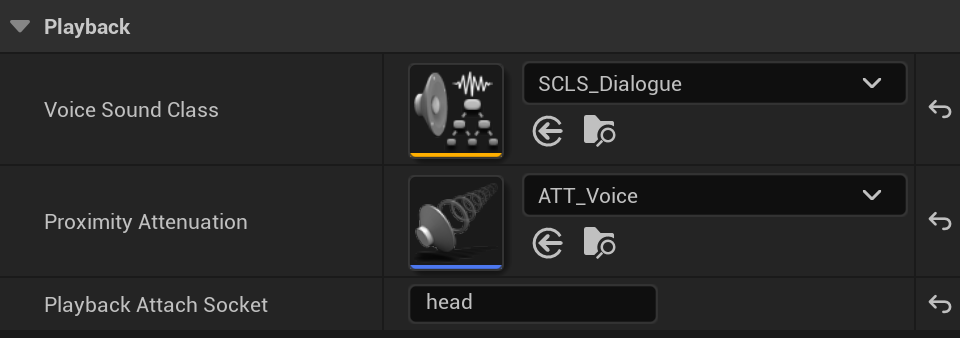
DA_Voiceand fill the three fields of the table below.
- Save both assets.
| Field | Value | Why |
|---|---|---|
Voice Sound Class |
SCLS_Dialogue |
It is a child of SCLS_Master, so the MASTER VOLUME slider moves the voices too |
Proximity Attenuation |
ATT_Voice |
A voice is loud up to 3 m away and silent past 23 m |
Playback Attach Socket |
head |
The voice comes out of the robot's head, not its feet |
Leave the other fields at their defaults. EPVC muffles a voice behind any wall that blocks the Visibility channel, and the walls of the template already block it.
Create the voice component
The voice component is a child of the EPVC component. It adds the links to the face, the nameplate and death.
- In
Content/MPFriendslop/Blueprints/ActorComponents/, right click, then Blueprint Class. - Open All Classes, search
ProximityVoiceChatComponent, and pick it. - Name it
BP_VoiceChatComponent, then open it. - Click Class Defaults. Set
Default ConfigurationtoDA_Voice.

- In My Blueprint, add a variable named
FaceComponent. Set its type to BP Face Component, Object Reference. - Add a second variable named
NameplateComponent, of type BP Nameplate Component, Object Reference.
Open the microphone of the local player
Only the player who talks turns their microphone on. EPVC then sends their voice to the other players.
- In My Blueprint, add a function named
TryOpenMic. - Build its graph: Get Owner, Cast To Pawn, Is Locally Controlled, a Branch, and Set Active Voice with
Activeticked.

- Click Compile.
Connect it all at Begin Play
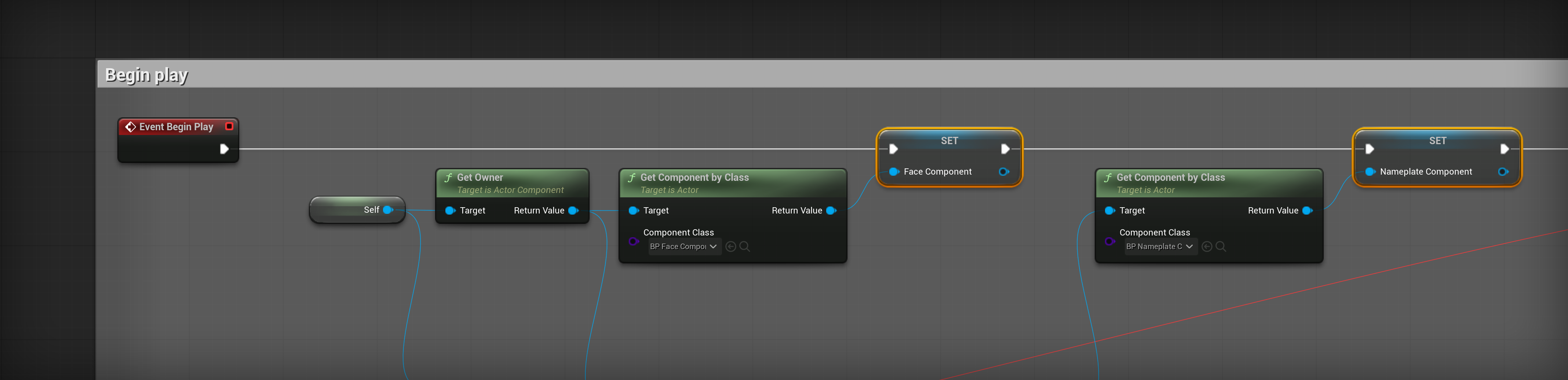
Open the Event Graph and start from Event Begin Play.
- Get the owner with Get Owner. Pass it to Get Component by Class, with
Component Classset to BP Face Component. - Set
FaceComponentwith the result. - Do the same for BP Nameplate Component and
NameplateComponent.
- Right click in the graph and search
Assign On Voice Activity. Unreal adds a Bind Event to On Voice Activity node and a new custom event wired to it. - Connect the bind node after the second Set.
- Cast the owner with Cast To Pawn. From As Pawn, search
Assign Receive Restarted Delegate. - After that bind node, call Try Open Mic.

- Add Switch Has Authority after Try Open Mic.
- From Authority, get the BP Death Component of the owner, then check it with Is Valid.
- From Is Valid, add
Assign On Decapitated, thenAssign On Revived. TheirTargetis the death component.

The second call to Try Open Mic is for the host. On a listen server, the host's pawn starts before its controller takes it, so it is not locally controlled at Begin Play. Receive Restarted fires after that, on the server and on the player's own machine.
Fill the four custom events
The assign nodes created four custom events. Fill them as follows.
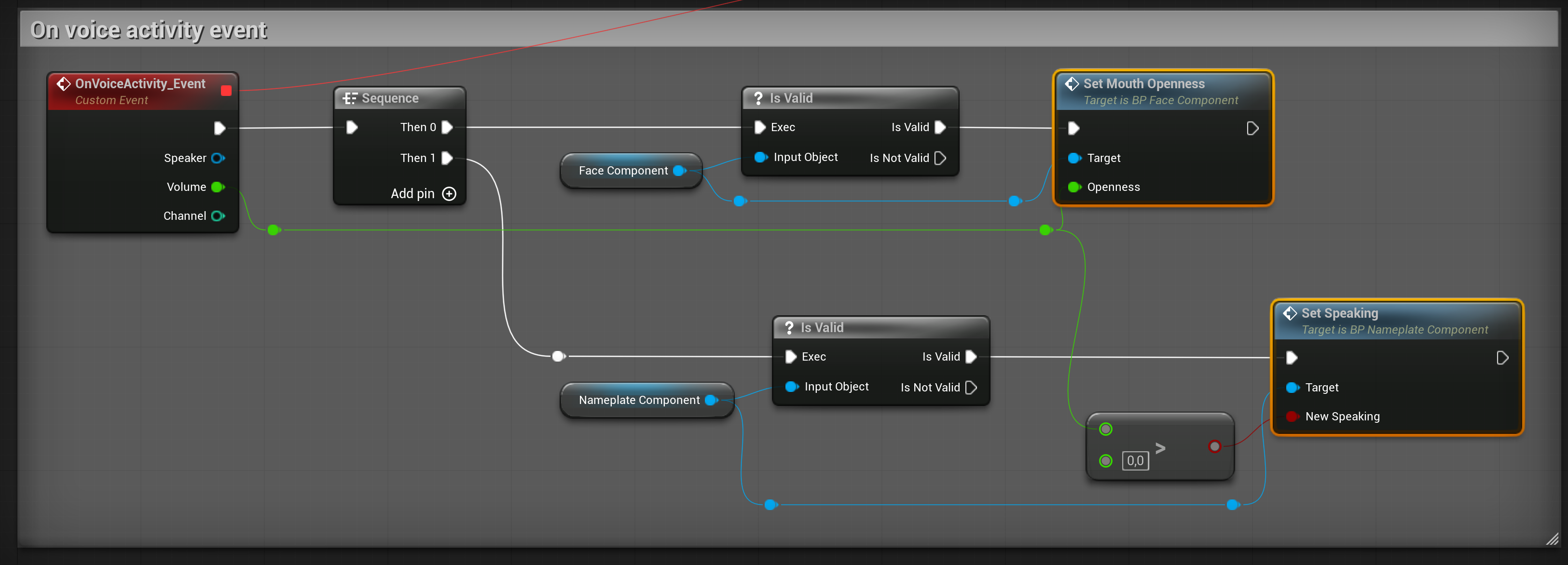
OnVoiceActivity_Eventruns on every machine, for the player who talks. Add a Sequence.- From Then 0, check
FaceComponentwith Is Valid, then call Set Mouth Openness withVolume. - From Then 1, check
NameplateComponent, then call Set Speaking. ItsNew SpeakingisVolume > 0.
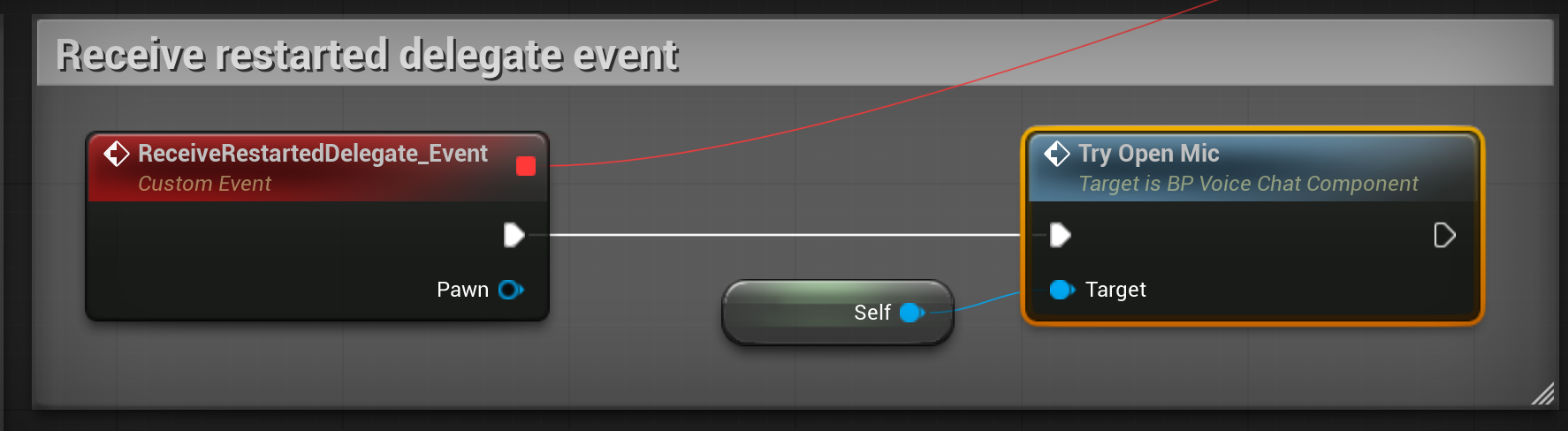
ReceiveRestartedDelegate_Eventcalls Try Open Mic.
OnDecapitated_Eventcalls Set Server Muted withMutedticked.OnRevived_Eventcalls Set Server Muted withMutednot ticked.

- Click Compile, then Save.
EPVC sends a volume of 0 when a player stops talking, so the mouth closes and the microphone hides without more nodes.
Add the component to the character
- Open
Content/MPFriendslop/Blueprints/PlayerCharacter/BP_FriendslopCharacter. - In Components, click Add and pick
BP_VoiceChatComponent. Keep its name. - Click Compile, then Save.
On your own character, add the same component. It finds the face, the nameplate and the death component by their class, and skips any that your pawn does not have.
Check that it works
- In the Play options, set Number of Players to
2and Net Mode to Play As Listen Server. - Click Play.
- Open the Output Log. It shows
Voice capture started (16000 Hz, mono). - Walk the two robots close together and talk.
- Look at the window of the player who listens. The other robot's mouth moves, and a microphone shows above its name.
- Walk away. The voice fades out past 23 m.
- Let one player die. While they are down, the other player does not hear them. After a revive at the bay, they can talk again.
The two Play windows share one microphone. You hear your own voice through the other window. That is expected: EPVC never plays a voice on the machine that sends it.
Use push-to-talk instead
The steps above keep the microphone open. For a key to hold instead:
- In
BP_VoiceChatComponent, remove the call to Try Open Mic from Begin Play, and removeReceiveRestartedDelegate_Eventwith its bind node. - In
Content/MPFriendslop/Inputs/Inputs/, right click, then Input, then Input Action. Name itIA_PushToTalk. - Open
IMC_Default, add a mapping forIA_PushToTalk, and press its key. - Open
BP_FriendslopPlayerControllerand add the IA_PushToTalk event. - From Started, call Get Controlled Pawn, then Get Component by Class with BP Voice Chat Component.
- Check the result with Is Valid, then call Set Active Voice with
Activeticked. - Do the same from Completed, with
Activenot ticked.
The template keeps every key in the player controller, and the components read no key themselves. See The controls, and adding an input.
If you hear nothing
| What you see | What to check |
|---|---|
| Easy Proximity Voice Chat is not in the Plugins window | EPVC is not installed for Unreal Engine 5.8. Install it from Fab with Install to Engine. |
The Output Log has no Voice capture started line |
[Voice] and bEnabled=true are not in Config/DefaultEngine.ini, or the editor was not restarted after you added them. |
| The capture starts, but the other player hears nothing | Walk closer: past 23 m, ATT_Voice makes the voice silent. Also check that the Windows privacy settings allow the microphone. |
For every setting of EPVC, see the EPVC documentation.