Add a level to the lobby
After this guide, your map has its own card, with a name and a picture, in the lobby and on the SOLO RUN page. The host clicks the card, then START THE RUN, and the crew plays your map. Alone, a player does the same from SOLO RUN.
A card is a level Data Asset in the Levels list of BP_FriendslopGameInstance. The lobby and the SOLO RUN page both read that list. Adding a level opens no graph.
Before you start
- MPFriendslopV2 open in Unreal Engine 5.8.
Make the map
L_Annex is a complete run map with no generator. A copy of it already has the players, the loot, the extraction, the lamps and the look.
- In the Content Browser, open
Content/MPFriendslop/Maps/L_Annex. - Open File, then Save Current Level As.
- Save the copy in
Maps/, asL_followed by your map's name, for exampleL_Warehouse. - Change the rooms. Keep the
PlayerStartactors, the extraction trap and some loot spawn points. - Save.
What a run map needs, actor by actor, is on Build your own level.
Make the picture
The card shows a 16:9 picture at 256 x 144. The shipped pictures are 512 x 288, so they stay sharp on a large screen.
- In your map, move the view to the shot you want on the card.
- Press G to hide the editor icons.
- In the Cmd box at the bottom of the editor, type
HighResShot 1920x1080, then press Enter. - Unreal writes the picture to
Saved/Screenshots/WindowsEditor/in the project folder.
Any 16:9 picture of your own works too.
Import the picture
- In the Content Browser, open
Content/MPFriendslop/Textures/Widgets/Levels/. - Drag the picture file into the folder.
- Rename the new texture
T_Thumbnail_Level_followed by your map's name. - Open the texture.
- Set
Compression SettingstoBC7. - Set
Mip Gen SettingstoNoMipmaps. -
Set
Texture GrouptoUI.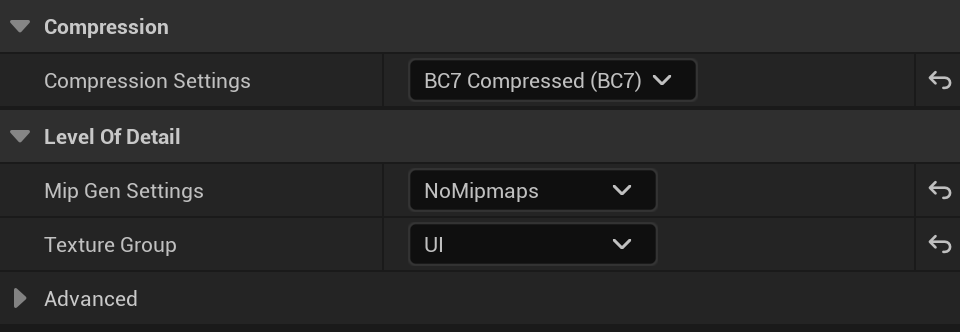
-
Save.
Make the level Data Asset
- Open
Content/MPFriendslop/Blueprints/DataAssets/Level/Childs/. - Right click in the folder, then click Miscellaneous, then Data Asset.
- Pick
BP_LevelDataAsset, then click Select. - Name it
DA_Level_followed by your map's name. - Open it.
- In
Display Name, type the name the card shows. - In
Map, pick your map. -
In
Thumbnail, pick your texture.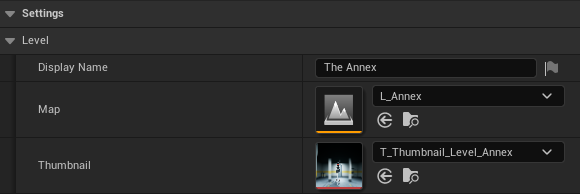
-
Save.
Add the card to the lobby
- Open
Content/MPFriendslop/Blueprints/Misc/BP_FriendslopGameInstance. - Click Class Defaults in the toolbar.
- In the Details panel, find
Levels, underSettingsthenLevel. - Click the + next to
Levels. A new row appears at the end of the list. - In the new row, pick your
DA_Level_Data Asset. - Click Compile, then Save.
The cards follow the order of the list. The first card is the one picked when a page opens.
The SOLO RUN page shows the same cards, so your level is there too.
Change the picture of a card
- Import the new picture as in Import the picture.
- Open the level Data Asset of the card, for example
DA_Level_Annexfor THE ANNEX. - In
Thumbnail, pick the new texture. - Save.
The name under the picture is Display Name, in the same Data Asset.
Check that it works
- Open
Content/MPFriendslop/Maps/L_MainMenu. - Click Play, then HOST RUN.
- Click the HOST tab.
- Look at the left of the page. Your card shows after the two shipped ones, with its picture.
- Click your card. Its frame and its name turn amber.
- Click OPEN LOBBY, then START THE RUN. The run starts on your map.
If it does not work
| What you see | What to check |
|---|---|
| The card shows an empty white frame | Thumbnail is empty in the level Data Asset. Pick the texture, then save |